
Your Platform Sign-Up Guide
16 easy steps, with a picture of every screen. Do them in order and don't skip ahead. You've got this!
Make your platform account
Pass the assessment
Join our team
Tell us, get approved, open your agent portal
🎒 Before you start
- 💻 The computer you'll work on
- 🔌 Internet plugged in with a cable (Ethernet)
- 📱 Your cell phone, for a text code
- 🪪 Your ID, so your name matches
- ⏰ About 1½ hours with no rush
- 🤫 A quiet room
📝 Part 1: Make your account about 20 min
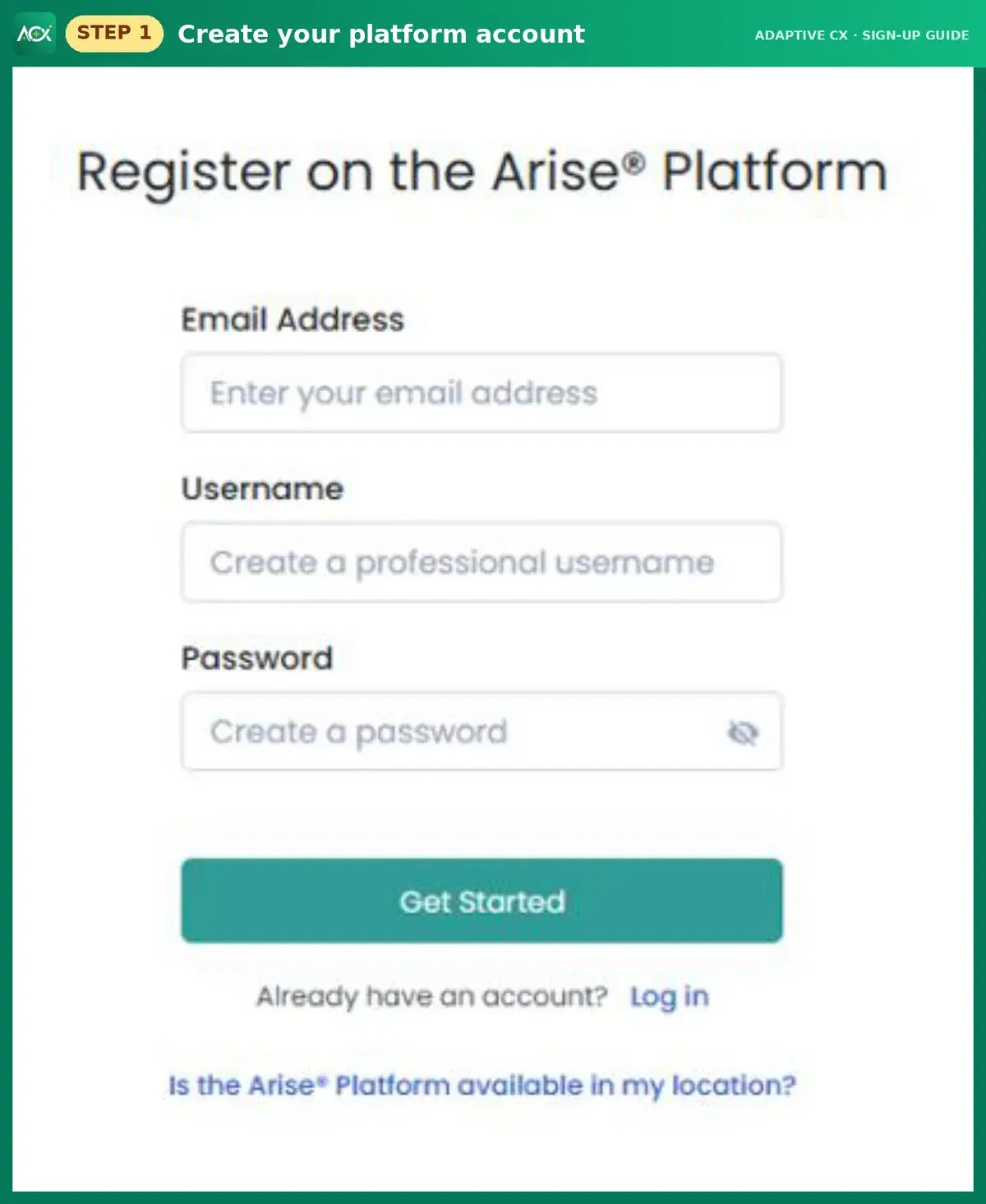
Register on the platform
Open the platform registration page and click Register Now. Fill in:
- Email Address: one you check every day. Use this same email for everything with the platform and with us.
- Username: something professional, like your first and last name.
- Password: a strong one. Write your username and password down somewhere safe.
Click "Get Started."
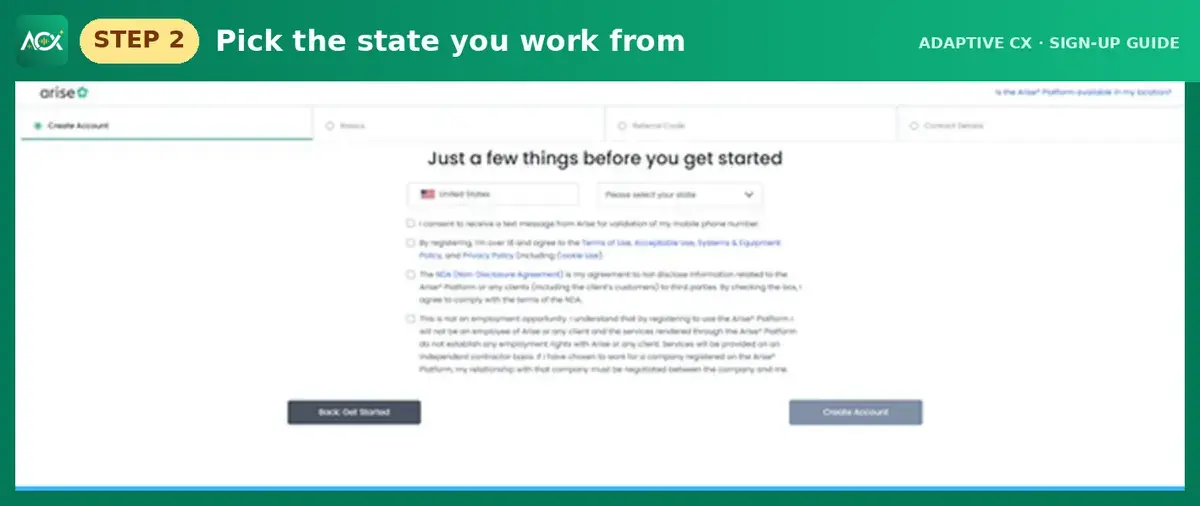
Pick where you live
Choose United States, then the state you will really be working from.
Read and check every acknowledgment box, then click "Create Account."
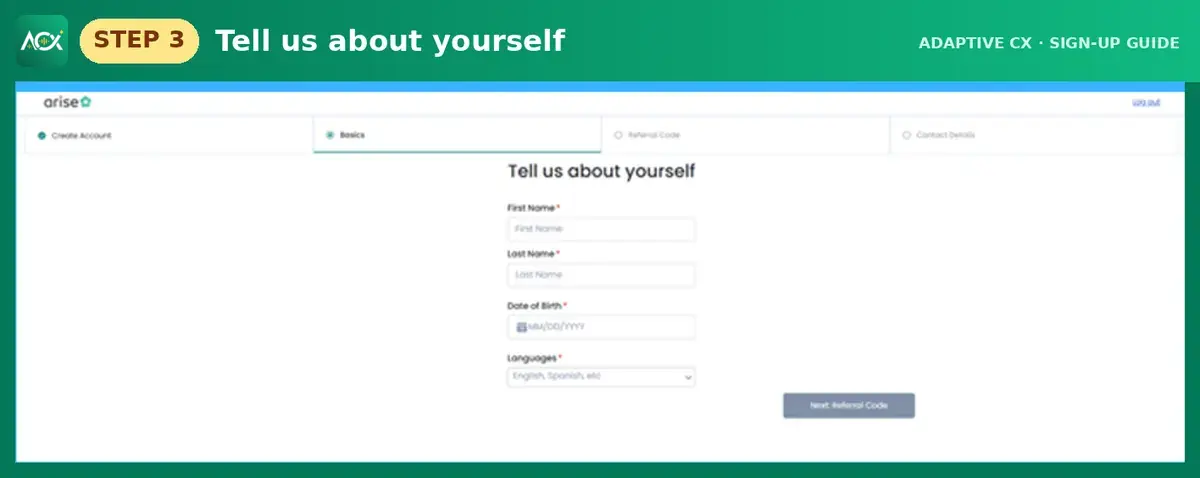
Tell us about yourself
Type your First Name, Last Name and Date of Birth, then choose every language you speak.
Use your full legal name, just like it is on your ID. Check your spelling, then click "Next: Referral Code."
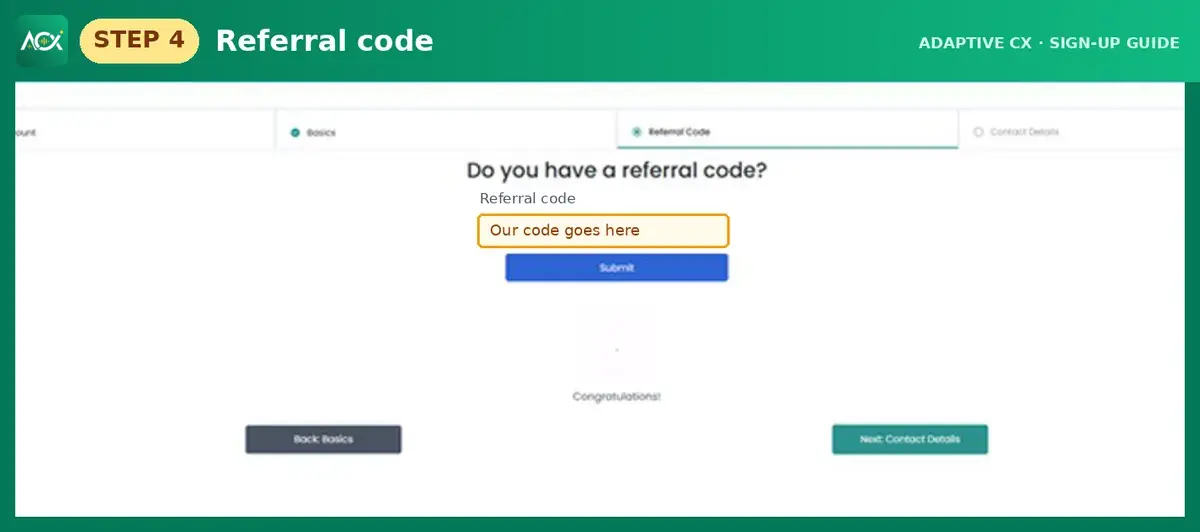
The referral code
If it asks for a referral code, leave the box empty and click "Next: Contact Details" to keep going without one.
Type our referral code in the Referral code box:
4026895
Double-check it, click "Submit," wait for the "Congratulations!" message, then click "Next: Contact Details."
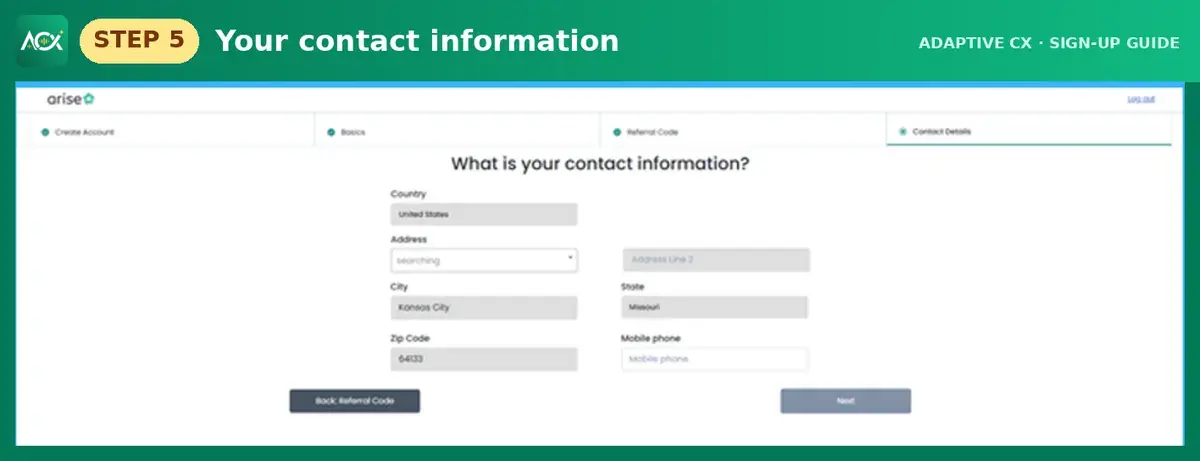
Your contact information
Type your street address (and Address Line 2 if you have an apartment or unit), city, state, ZIP code and the cell phone number you'll get texts on.
Check that it's all right, then click "Next."
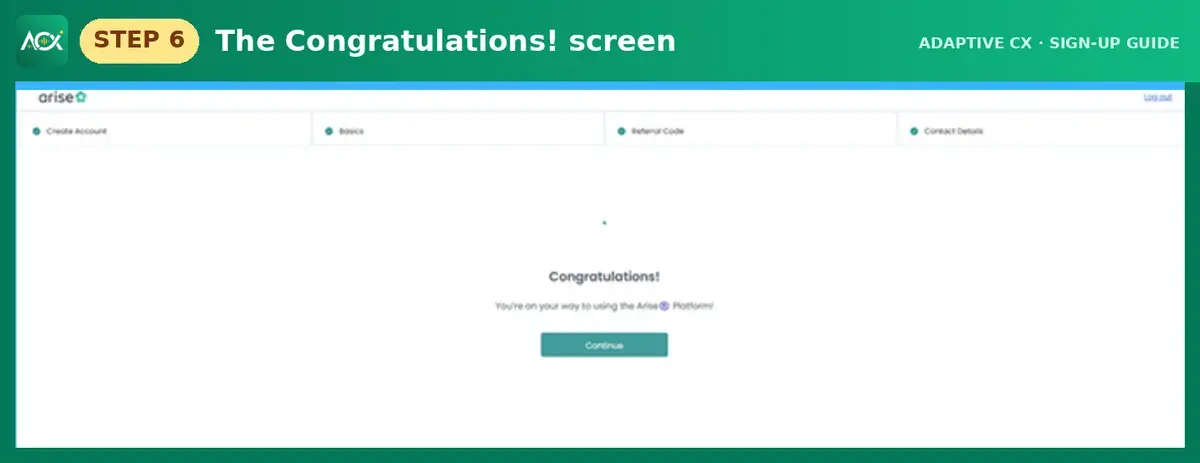
See "Congratulations!"
You should now see a "Congratulations!" screen. That means your account is made. Click "Continue."
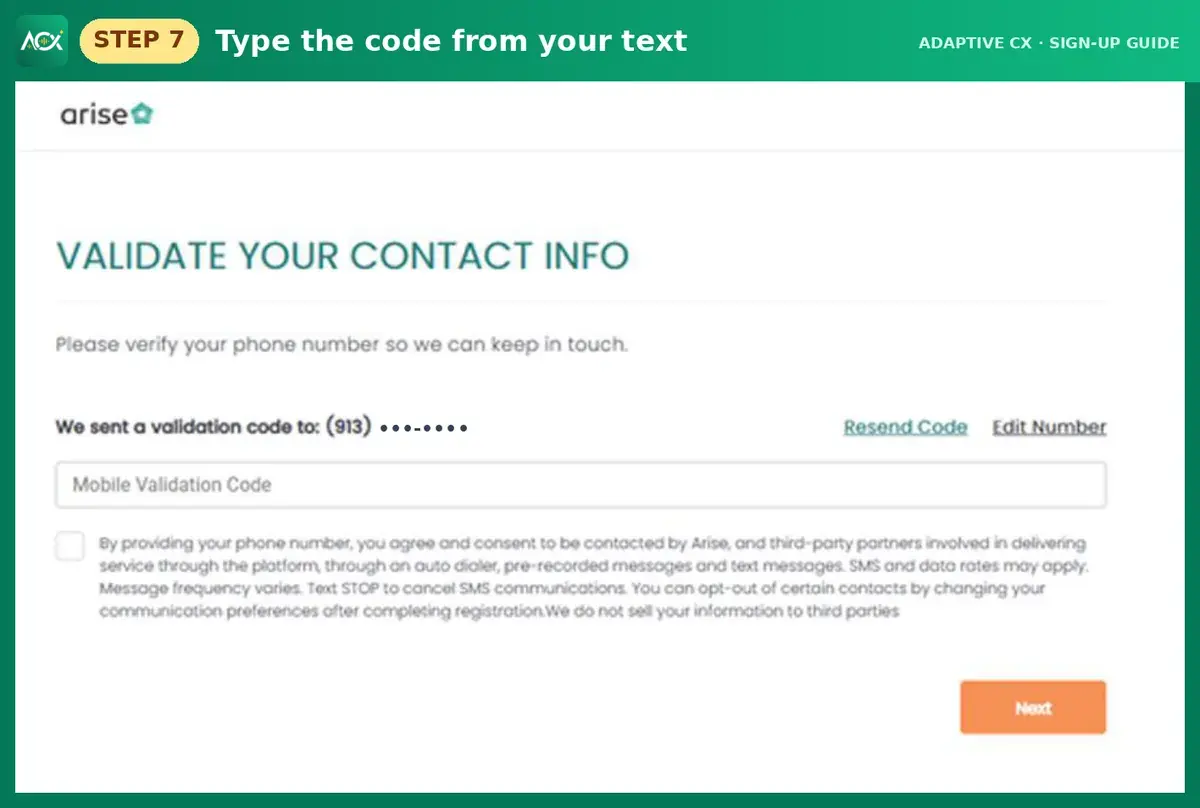
Check your phone (and email)
The platform texts a code to your cell phone. Type it in the "Mobile Validation Code" box, read the consent box and check it if you agree, then click "Next." If the platform also emails you a code, type that in too.
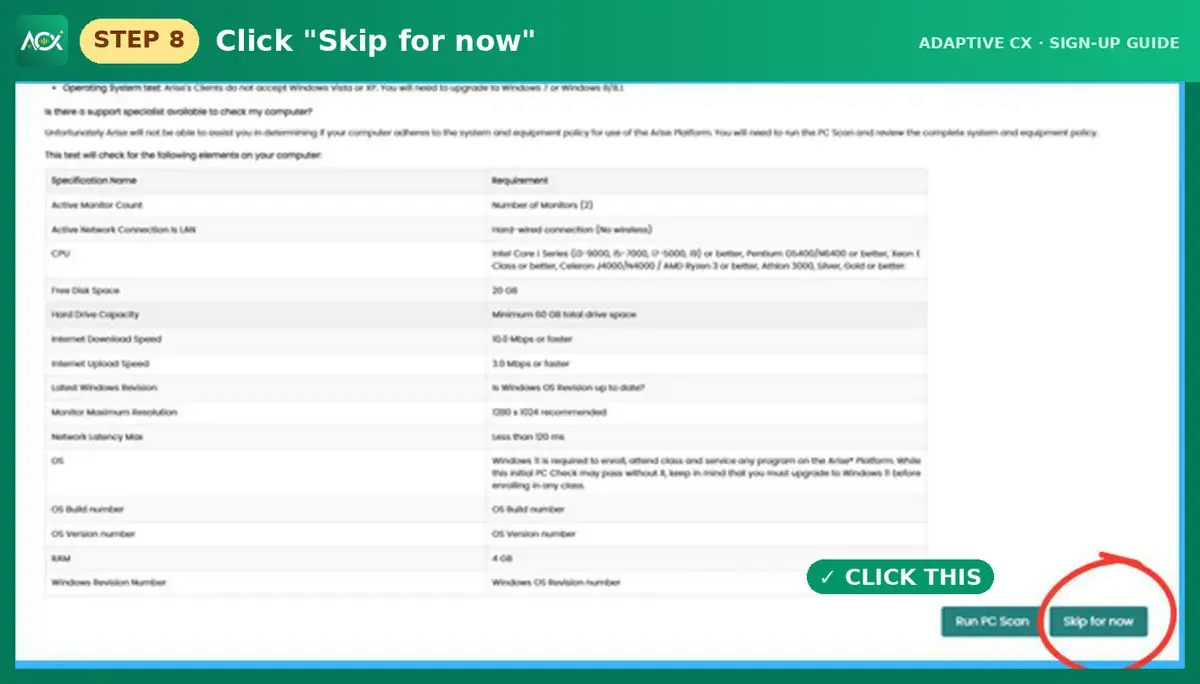
Skip the PC Scan for now
You'll see a page about a PC Scan of your computer. Don't run it yet. Click "Skip for now." We'll tell you when it's time, after you join our team.
🧠 Part 2: The assessment 45–60 min
Take the assessment
This is the most important step. You must pass it to keep going.
- Set aside 45–60 minutes in a quiet spot, on your own computer, with no distractions.
- Click "Begin Assessment." If it asks for an email, use the same email you registered with.
- Read every question and every instruction slowly. Take your time and finish the whole thing.
- When you're done, go back to the platform page and refresh it to keep going.
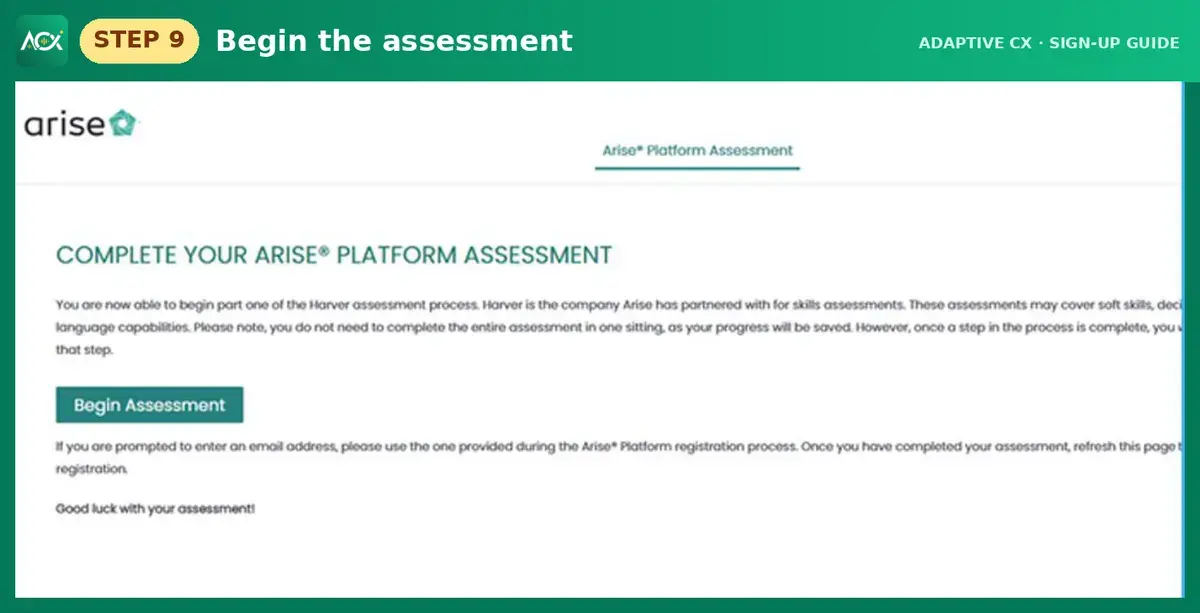
📸 Step 10: You passed! Take a screenshot of THIS page
After you pass, the platform shows a page called "How will you use the platform?" Seeing this page is how you know you passed the assessment.
Take a screenshot of this whole page. This is the screenshot you'll send us in Step 15. Save it somewhere you can find it.
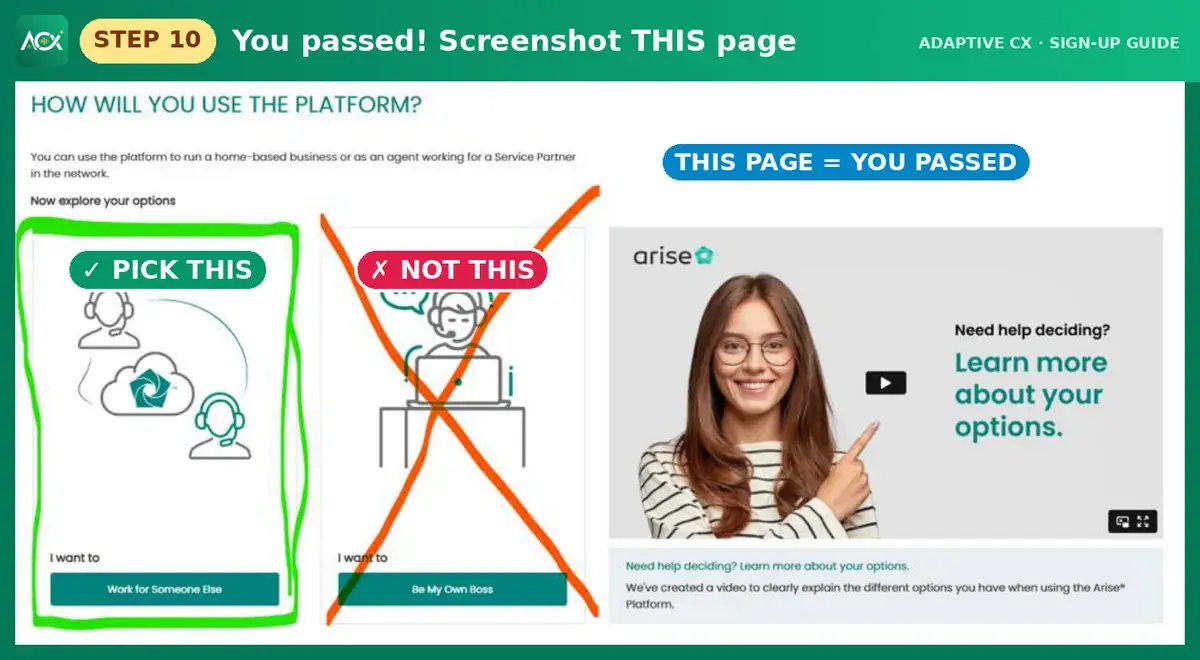
🤝 Part 3: Join our team about 10 min
Start here once you've taken your screenshot of the "How will you use the platform?" page.
Choose "Work for Someone Else"
On that same "How will you use the platform?" page (the picture in Step 10), click "Work for Someone Else."
It might say Finish Registering instead. That's fine, click it.
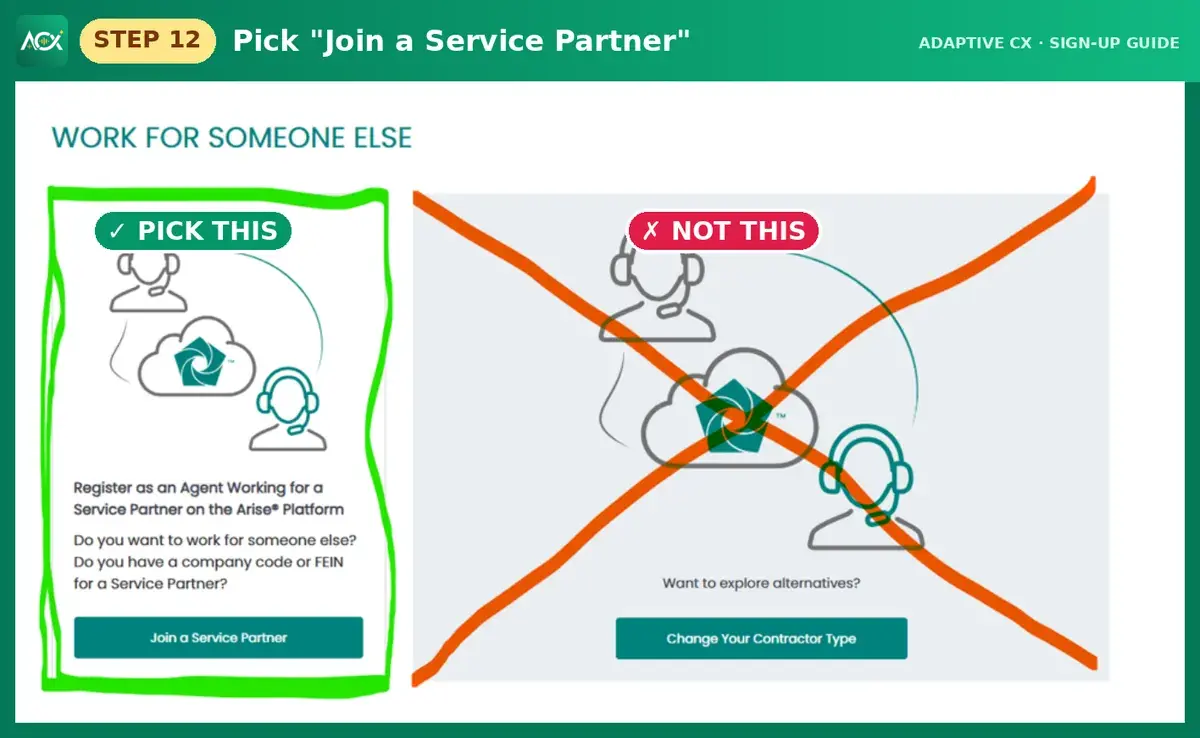
Choose "Join a Service Partner"
On the "Work for Someone Else" page, click "Join a Service Partner." This is how you join Adaptive CX.
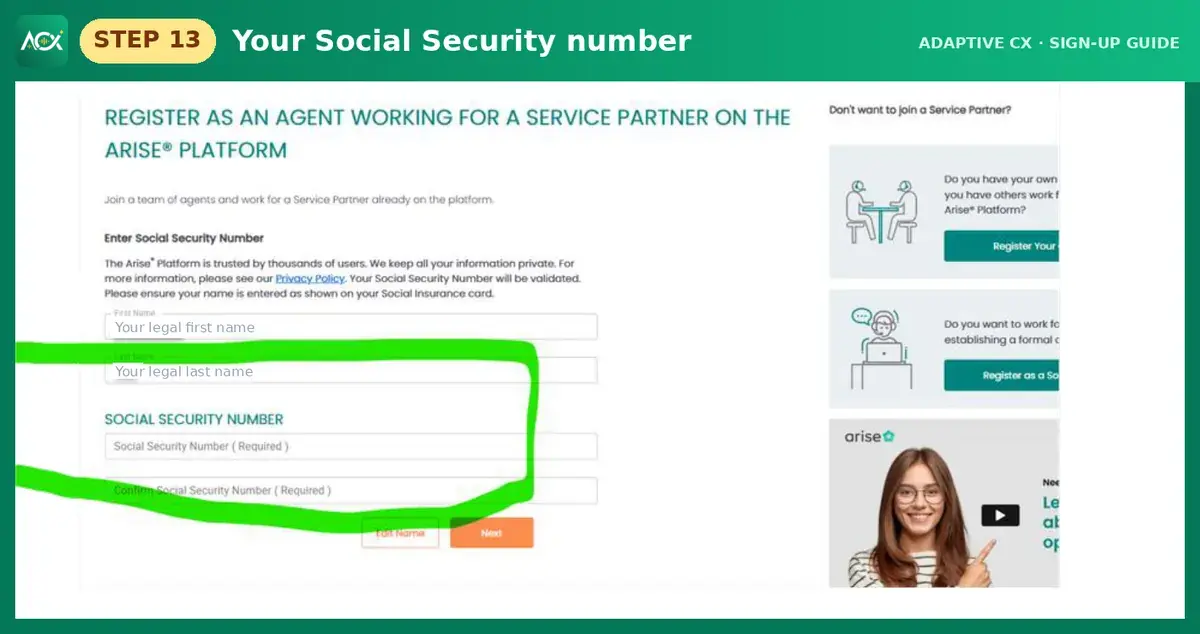
Type your Social Security number
The platform checks who you are. Make sure your name matches your Social Security card, then type your Social Security number, type it again under "Confirm Social Security Number," make sure both match, and click "Next."
Find us and send your request
When it asks for the Service Partner (company code), type our IBO ID:
8648387
Make sure it says Adaptive CX Solutions. Then send your request to join.
🔓 Part 4: Tell us and open your agent portal
Press "I've registered" 🎉
Open our "We received your application" email (or any email from us) and press "I've registered." You can also press it on the agent portal sign-in page.
Upload your screenshot of the "How will you use the platform?" page from Step 10. The green button turns on once it's added. Press it to send.
We approve you, and your agent portal opens
We check your screenshot and approve your request to join our team. As soon as you're approved, your agent portal unlocks. Sign in at adaptivecxsolutions.com/portal with the email you applied with, or use the Open my agent portal button in our emails.
🗺️ What happens next
We'll email you each step, one at a time, and every step is in your agent portal too. Keep an eye on your inbox and your spam folder.
☑️ My checklist
- I made my platform account (or logged in to the one I had)
- I used my full legal name
- I picked my real state and checked every box
- I filled in my address and cell phone
- I saw the "Congratulations!" screen
- I typed in my text code
- I clicked "Skip for now" on the PC Scan
- I passed the assessment
- I took a screenshot of the "How will you use the platform?" page
- I chose Work for Someone Else, then Join a Service Partner
- I typed my SSN into the platform only
- I typed in 8648387
- I saw "Adaptive CX Solutions" and sent my request
- I pressed "I've registered" and uploaded my screenshot
🙋 Stuck? We're here to help.
Email support@adaptivecxsolutions.com. Tell us your name, which step you're on, and send a screenshot of what you see.
🔒 Never send us your password, a text code, or your Social Security number.
Adaptive CX Solutions LLC · adaptivecxsolutions.com · Platform screens can change a little, so follow what you see on your screen.